 Zip Control
Generate and import ZIP code lists
Generate U.S. ZIP codes by drawing a territory, or import a list you already use. Either way, review the saved codes before treating the list as your coverage.
Open Zip ControlTurn a CSV of ZIP codes into a service-area map
Prepare a ZIP-only CSV
Put one five-digit U.S. ZIP per row in a single column. Format the column as text before saving so leading zeroes stay intact. Leave out phone numbers, record IDs, and other five-digit values.
Upload it to the right area
Open the workspace and category you want. Select the coverage area, open Add ZIPs, choose Upload file, and select your CSV. Review the values in the text box before clicking Add to area.
Check the saved ZIPs, then open the map
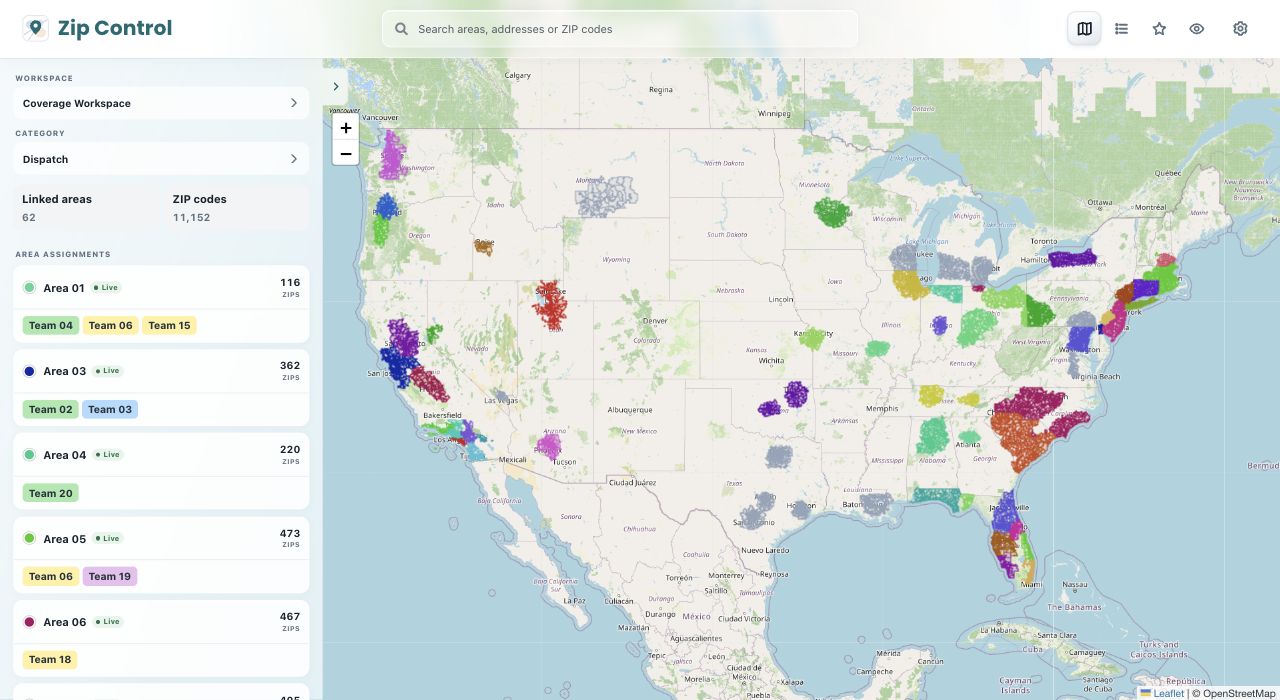
Open the area’s list and compare it with your source. Duplicates appear once, and the import reports skipped postal-only or unlisted codes. Use the map to review the area, or download the saved area CSV to reuse the approved list.
Import a known list or draw a new territory?
Import a list when the ZIPs are already approved
Use the approved codes as your input. Do not redraw a map to reconstruct an exact list, and verify any skipped entries against the original file.
Draw a territory when you know the geography but not the ZIPs
Draw around the area you want to serve. Zip Control selects ZIPs whose stored map points fall within the shape. Check ZIPs near the edge and add or remove them individually if the result does not match your policy.
Keep separate lists when coverage differs by service
Import each service’s codes into its own category or area. Use the saved list for the specific service when deciding whether to accept a job.
Common questions
Can I paste ZIP codes from more than one state?
Yes. The import accepts supported codes across states. If a code isn’t visible on the map, check its state and the area’s saved list before importing it again.
Why was a five-digit code skipped?
The importer is for standard delivery ZIPs. It skips postal-only codes such as PO box, organization-specific, and military ZIPs, and separately reports numbers it cannot find in its reference.
Can I fix the generated list without drawing again?
Yes. Add or remove individual ZIP codes from the area. If an exact list is already approved, import that list directly instead of trying to redraw it.